Disclosure: ToolCheckHQ may earn a commission if you buy through links on this page. It costs you nothing extra. Read our affiliate disclosure.
Most of the work after a client call is typing. You write the recap, list the next steps, then turn the discussion into a proposal or a report.
Sembly AI can do much of that for you. A bot joins the call, writes the notes, finds the tasks, and then builds a branded document from what was said.
This guide shows how to use Sembly AI from first signup to a finished client proposal. I wrote the steps from Sembly’s own how-it-works and product pages, so I have not run a client call through it myself. Menu names can change, so treat the steps as a map and check them against what you see on screen.
If you want the full feature and plan breakdown first, read my Sembly AI review and my Sembly AI pricing guide.
What you need before you start
- A Sembly account. The Free plan gives you 5 meeting hours, and paid plans start with a 7-day free trial.
- A calendar with your meetings, such as Google, Outlook or Apple.
- A Zoom, Google Meet, Microsoft Teams or Webex meeting to test with.
- A client website or brand files, if you want branded documents.
If you plan to pay, Sembly’s Black Friday code BF2026 takes 20% off any plan for 12 months through November 30, 2026.
Step 1: Create your Sembly account
Use the signup link on this page and start with the Free plan or a paid trial. Sembly asks you to connect a calendar during signup.
If you expect to work with clients, choose a paid plan trial. Branded client documents run on monthly Studio credits, and the Free plan gives you no monthly credits.
Step 2: Connect your calendar
Open Settings, then My Calendars, and link your calendar. Sembly supports Google, Outlook, Apple, Yahoo, Zoho and any .ics calendar.
Once connected, Sembly sees your upcoming meetings and the video links inside them.

Step 3: Choose which meetings Sembly records
You decide which meetings get a bot. The options are all meetings, only the meetings you created, or only the ones you pick.
Start with “only ones I select” for your first week. That keeps the bot out of private calls until you trust the setup.
Step 4: Tell people you are recording
Before the first call, let attendees know a recording tool will join. Many US states and countries require consent, and it is good practice everywhere.
Pro and higher plans include consent tracking, which helps if you record often. If your calls involve health, legal or financial topics, check the rules that apply to you.
Step 5: Join your meeting as usual
Run the meeting on Zoom, Google Meet, Microsoft Teams or Webex. Sembly joins as a participant and records the call.
For in-person meetings, Sembly’s how-it-works page says you need the mobile app or an uploaded recording. A recording made with your phone works for this.
Step 6: Review your meeting notes
A few minutes after the call, Sembly gives you:
- A recording and a speaker-labeled transcript
- Notes organized by topic
- Key items and decisions
- A list of tasks
- Insights, such as risks and notable events on higher plans
Read the notes the same day. Fix any wrong names or numbers while the call is fresh in your mind.
Step 7: Check and send your tasks
Sembly pulls tasks out of the conversation. Open the list and confirm the owner, the deadline and the context for each one.
You can then send notes, transcripts and tasks to the tools you use. Sembly lists 30+ supported apps, plus Zapier and MCP, which lets other AI tools read your meeting data.
Step 8: Ask questions across your meetings
On Pro and higher plans, Sembly’s AI chat works across your whole meeting library. You can ask things like these:
- What did this client say about budget over the last month?
- Which deadlines came up in the project calls?
- What objections did we hear in discovery calls?
Basic plans chat with one meeting at a time. The answers help you write a sharper proposal, since you can pull the client’s own words.
Step 9: Set up a client and their branding
This step makes your documents look like they belong to the client.
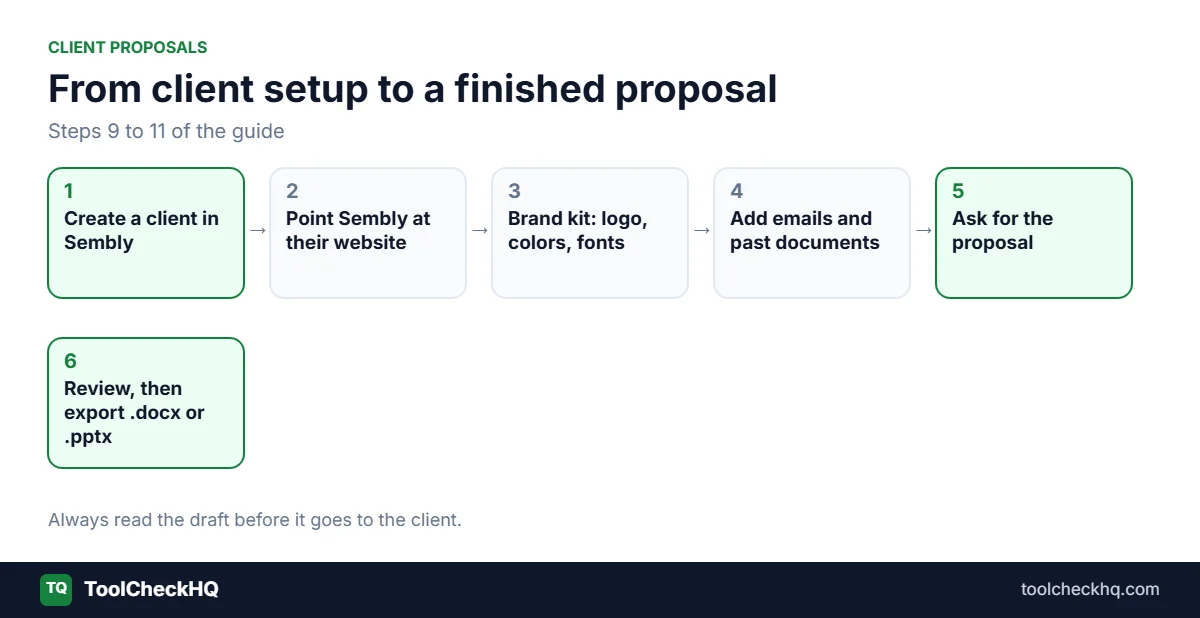
- Create a client in Sembly.
- Point Sembly at the client’s website. It reads the site and builds a brand kit with the logo, colors, fonts and tone of voice.
- Or upload their brand guidelines or files.
- Add reference material, such as emails, notes and past documents.
Sembly’s pages say each client gets its own space that holds their meetings, branding and uploaded files. They do not explain how a specific meeting gets assigned to a client, so check that inside the app.
Step 10: Generate your client proposal
Now ask Sembly to build the document. You describe what you need and list any specific requirements.
Sembly’s artifact types include proposals, pitch decks, statements of work, project reports and creative briefs. For a proposal, Sembly draws on your discovery meetings, the client’s brand kit and your reference material.
Write a clear request. Here is a prompt you can adapt:
Create a proposal for [client name] based on our discovery call on [date]. Include their stated goals, a 3-month project plan, deliverables, pricing options and next steps. Keep the tone friendly and direct.
The more detail you give, the closer the first draft lands.
Step 11: Review, edit and export
Sembly includes a human approval step, so you review the document before it reaches the client. Check the facts, prices and dates against your own notes.
When you are happy with it, export it. Sembly’s how-it-works page says documents export as editable .pptx or .docx files, so you can polish them in PowerPoint or Word.
Never send an AI draft without reading it. Wrong prices or promises in a proposal can cost you the deal.
Tips to get better results
Run discovery calls with Sembly on. The proposal is only as good as the conversation behind it. Ask clients to state goals, budget and deadlines out loud.
Use clear speaker names. Accurate speaker labels make notes and quotes easier to trust.
Keep one client space per customer. Mixing clients muddles the context Sembly draws from.
Watch your credits. Each AI document uses Studio credits, and unused credits expire at month end on Basic and Pro. Check the balance during your trial to see what a typical proposal costs.
Save a template. If you send similar proposals often, build one good structure and reuse it.
Common problems and fixes
- The bot does not join: Check that the meeting is on your calendar and that your recording setting includes it.
- Transcript errors: Fix names and terms in the notes. On Pro and above, custom vocabulary helps with industry words.
- A document sounds generic: Add more reference material and a more detailed request.
- You ran out of credits: Wait for the monthly reset, or ask Sembly about buying extra credits. The pricing page does not list their cost.
- A reviewer complaint about editing: Some G2 reviewers mention editing problems. Test editing during your trial before you commit.
Who benefits most from this workflow
This setup suits consultants, agencies and freelancers who sell through calls and send a proposal afterward. It saves the most time if you do several discovery calls a week.
If you only want a transcript, a cheaper tool may fit better. My Sembly vs Fireflies vs Fathom vs Otter comparison covers the alternatives, and my guide to the best AI meeting assistants lists more options.
Final thoughts
Using Sembly AI comes down to a simple loop. Connect your calendar, record your calls, review the notes, set up the client, and generate the document.
The biggest gain comes from the last step, where a conversation turns into a branded file in minutes. My advice is to test the whole loop on one real client call during the free trial, then judge whether the time saved covers the price.
How to use Sembly AI FAQ
How do I use Sembly AI?
Sign up, connect your calendar, choose which meetings to record, and join your call as usual. Sembly then produces notes and tasks, and you can generate documents from your meetings.
How do I connect my calendar to Sembly?
Open Settings, then My Calendars, and link Google, Outlook, Apple, Yahoo, Zoho or an .ics calendar.
Can Sembly AI record in-person meetings?
Yes. Use the mobile app or upload a recording.
Can Sembly AI write a client proposal?
Yes. Sembly can generate proposals, pitch decks, statements of work, project reports and creative briefs from your meetings and client materials. You review and approve the result before sending it.
What file formats can Sembly export?
Sembly’s how-it-works page says documents export as editable .pptx and .docx files.
How does Sembly add client branding?
Point Sembly at the client’s website or upload brand files. It builds a brand kit with the logo, colors, fonts and tone of voice, then applies it to documents for that client.
Does Sembly AI have a free trial?
Yes. There is a Free plan with 5 meeting hours, and paid plans start with a 7-day free trial.
Last updated: November 18, 2026. Sembly updates its features and menus often, so confirm the steps inside the app before you rely on them.

Naresh runs ToolCheckHQ and builds affiliate sites and YouTube channels around marketing software. He reviews tools by digging through pricing pages, plan limits, help docs and user complaints, then explains in plain English what a tool really costs and who it suits.